
The Complete Guide to Unlocking CRM Automation from User Actions (With Webinar Examples)
If you've run a webinar and watched attendee data vanish into a spreadsheet, never to show up in a workflow or report again — you're not alone, and it doesn't have to work that way.
HubSpot App Events (formerly Timeline Events) used to be a read-only log on the contact timeline. Useful for auditing, not much else. But since a few months, they're now part of the actual data model: available in lists, workflows, lead scoring, customer journey analytics, the report builder, and datasets. The difference matters more than it sounds.
Here's what this guide covers: what App Events actually are, how they're different from Custom Events and Marketing Events (the naming is genuinely confusing), and several use cases with step-by-step instructions you can follow to improve your webinar automation and follow-up.
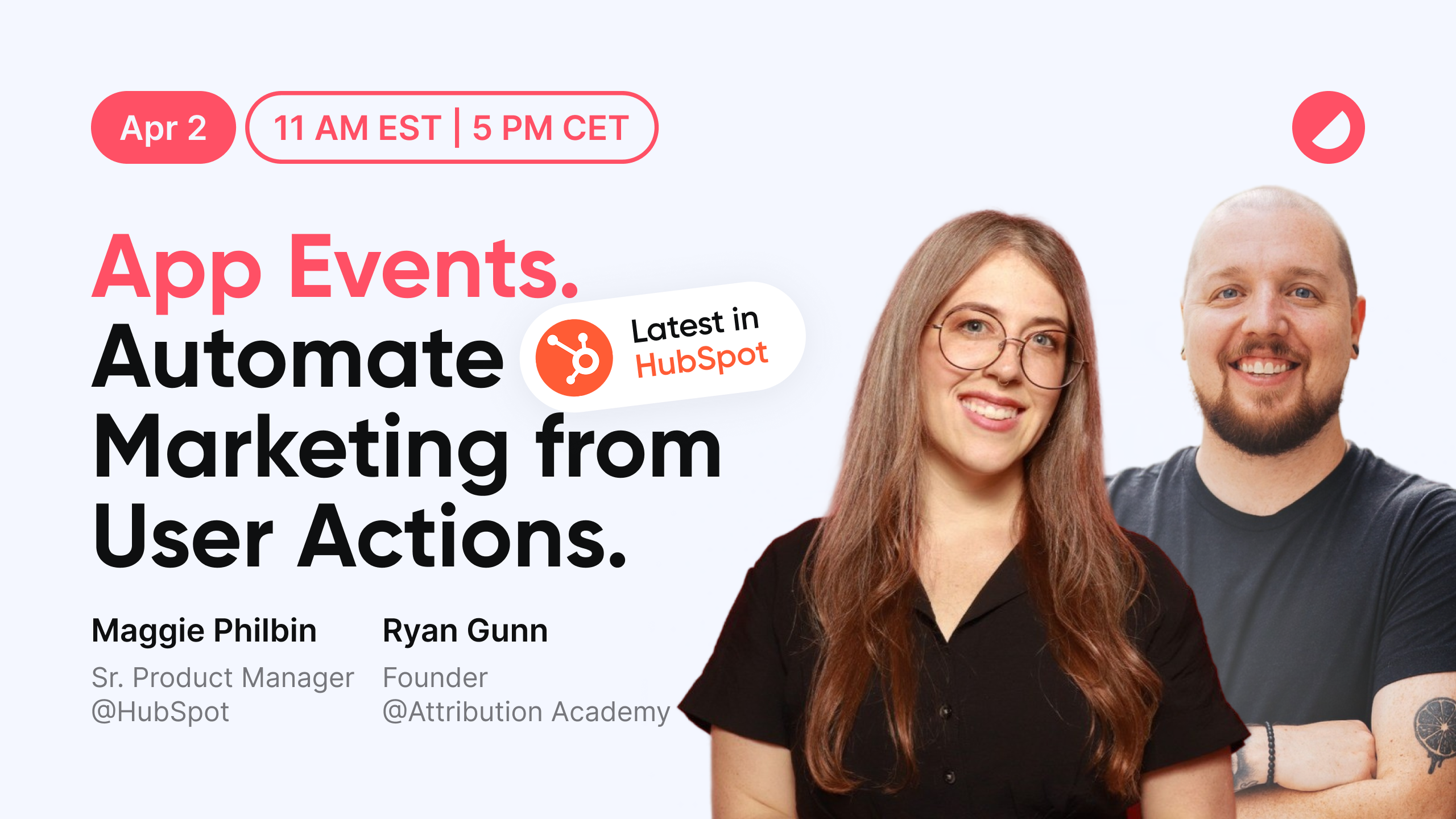
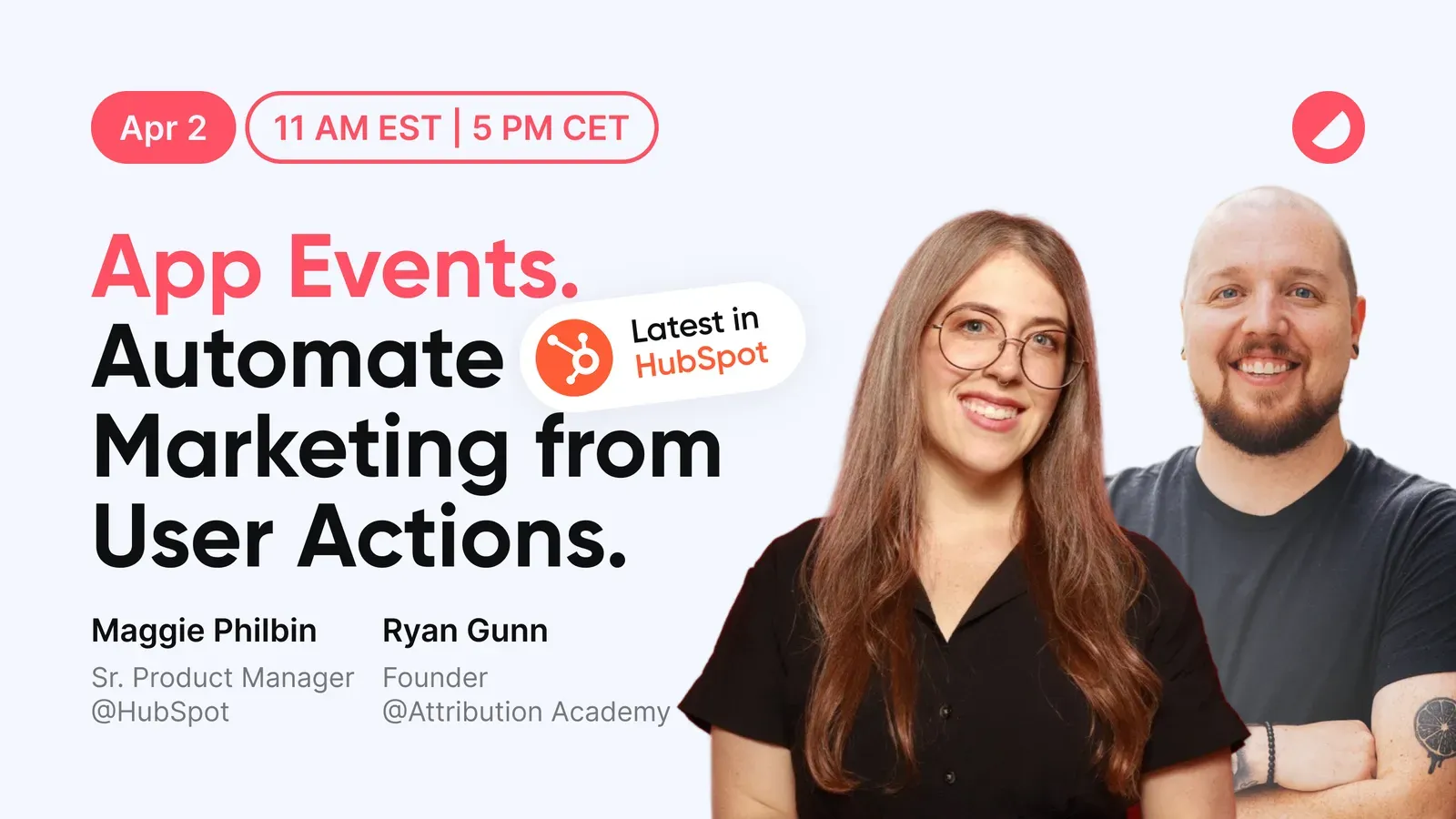
Webinar with Ryan Gunn and Maggie Philbin
All learnings in these article come from a webinar we hosted together with Ryan and Maggie on HubSpot App Events. Click to rewatch the webinar.
1. What Are App Events in HubSpot?
Before diving into the how, let's nail down the what, because the word "event" is genuinely confusing in the world of marketing technology.
In everyday language, an event is something someone attends: a webinar, a conference, a trade show. That's one valid definition.
But in data terms, an event is simply a moment in time — a thing that happened. A page view is an event. An email open is an event. A contract being signed is an event.
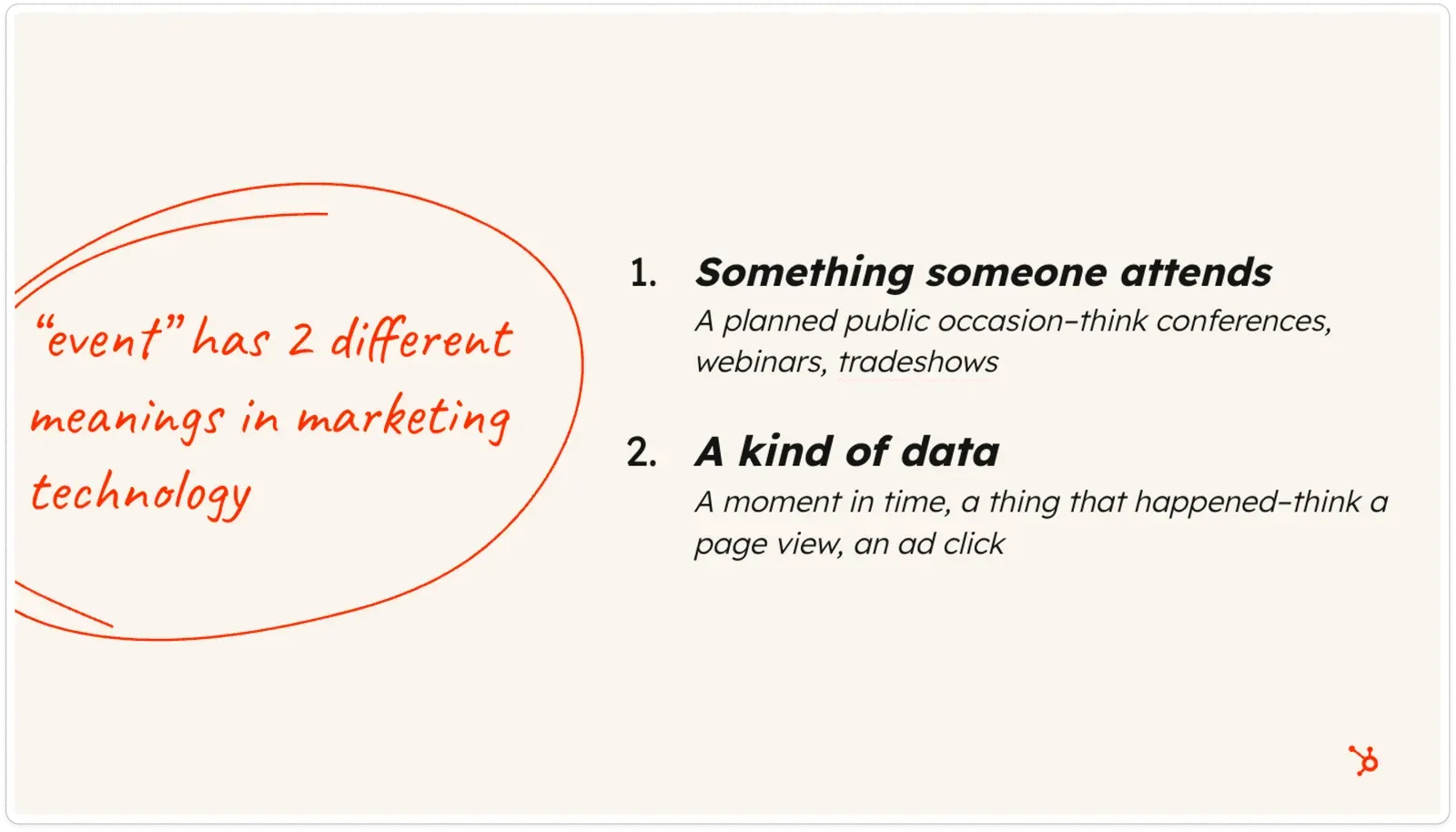
HubSpot uses both definitions simultaneously, which is part of why this topic trips people up.
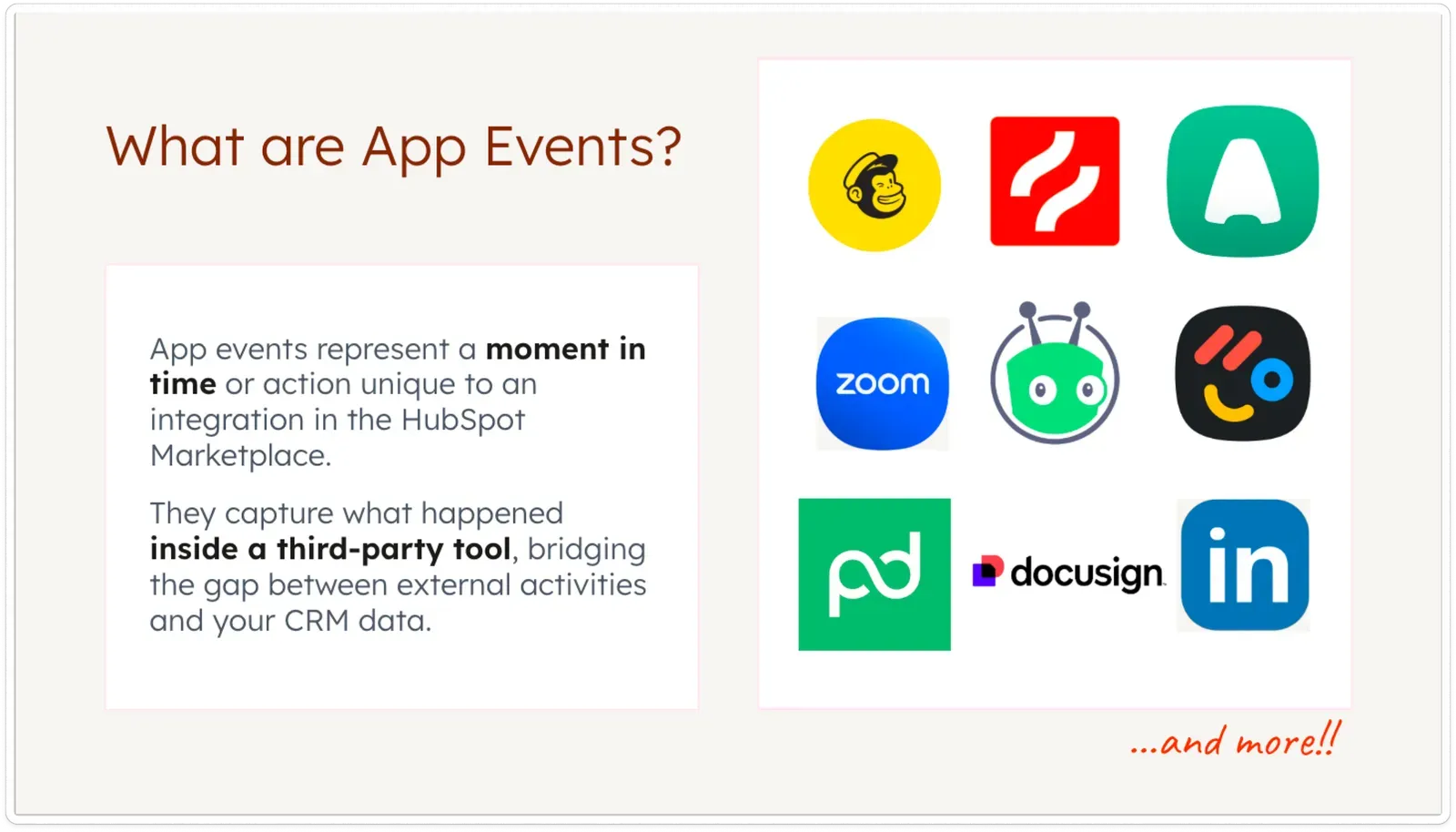
App Events fall into the second category: they are moments in time that are specific to a third-party integration you've installed in HubSpot. Every time someone registers for a webinar through Contrast, views a Vidyard video, signs a DocuSign contract, or clicks an ad on LinkedIn, those are App Events flowing into your CRM.
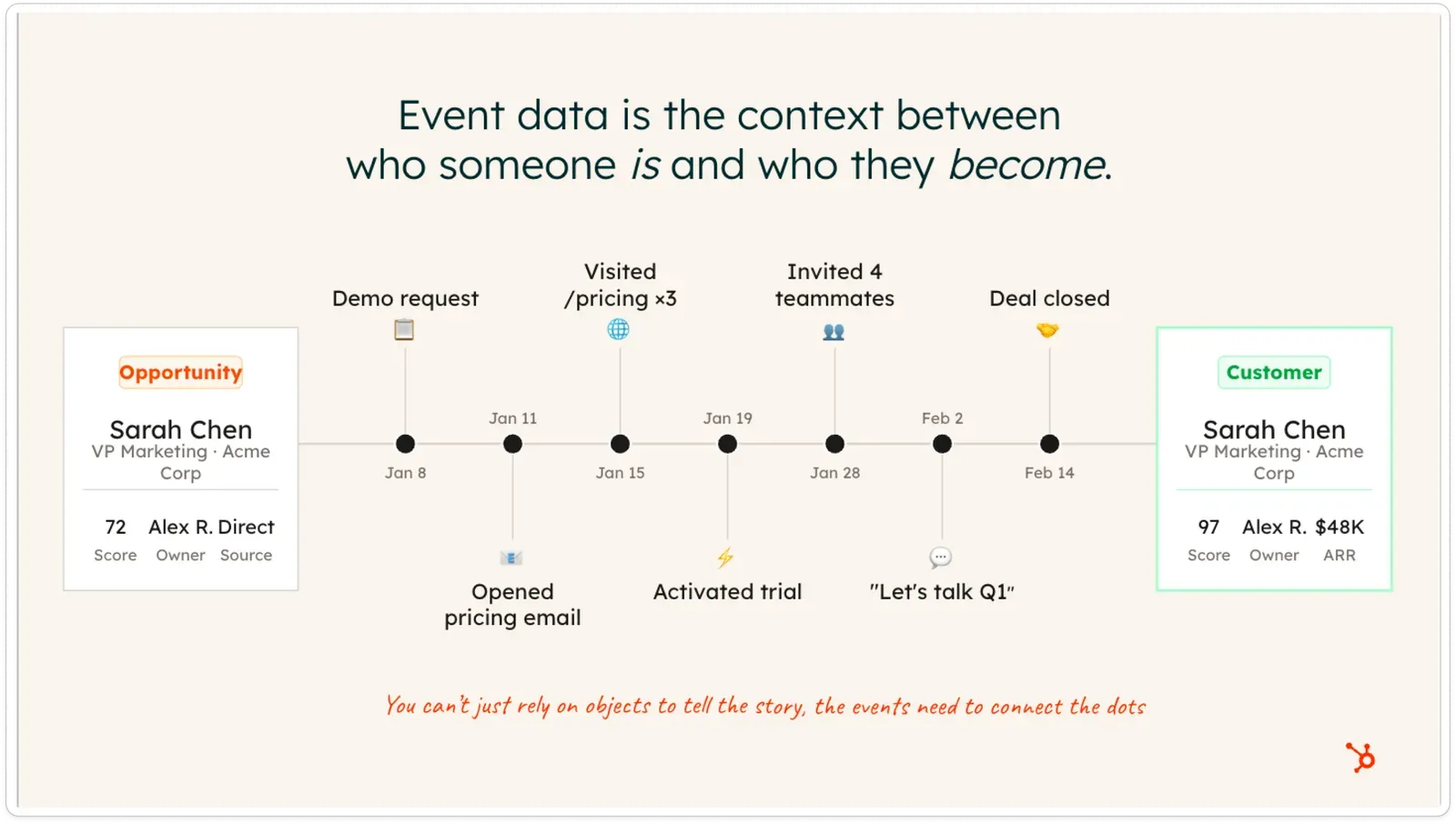
Think of App Events as the verbs in your CRM story. Your contact properties tell you who Sarah is and where she works. App Events tell you what she's actually doing — that she registered for a webinar, attended 78% of it, answered a poll, and clicked your pricing CTA at the end.
2. App Events vs. Custom Events vs. Marketing Events — What's the Difference?
This is one of the most common points of confusion, so let's break it down cleanly.
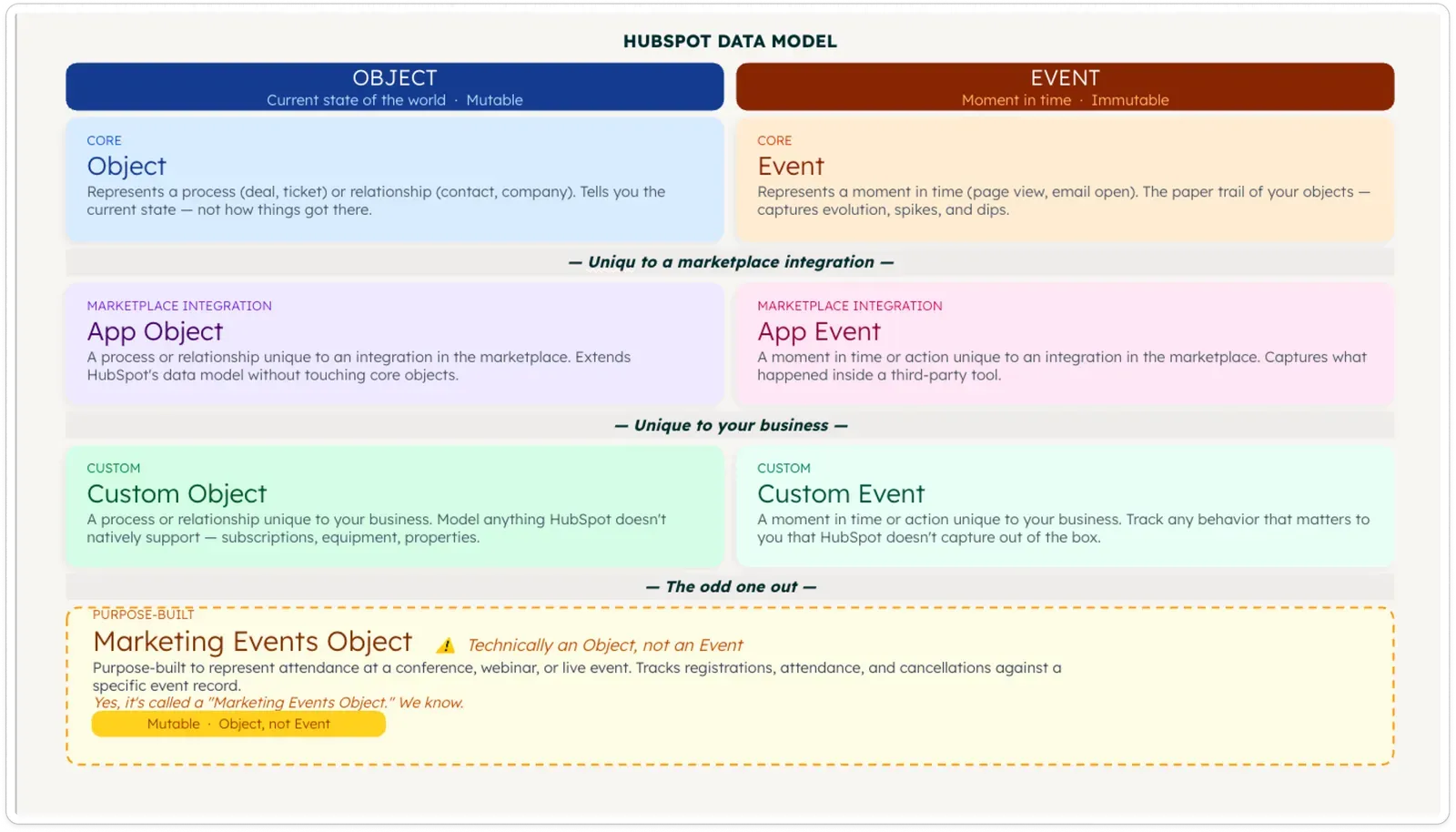
| Type | What It Is | Example |
|---|---|---|
| Custom Events | Moments in time unique to your business | A user completing onboarding in your product |
| App Events | Moments in time unique to a marketplace integration | A Zoom meeting ended, a DocuSign sent |
| Marketing Events | An object (not an event) purpose-built for things people attend | A webinar, conference, or in-person event |
| App Objects | Objects unique to a marketplace integration | (Parallel to App Events but for object data) |
The key distinction that surprises most people: Marketing Events is an object, not an event in the data sense. For a step-by-step guide to setting up and using Marketing Events, see our HubSpot Marketing Events guide. It's a structured record designed to manage the process of virtual or in-person gatherings. App Events, on the other hand, are time-stamped moments — data points — that flow from integrations.
Why Not Just Use a Contact Property?
This comes up constantly: "Why can't I just store this in a property?"
The answer is history. Properties are great for showing what's true right now — the most recent webinar attended, the current deal stage. But if you update a property every time something happens, you lose the trail of everything that happened before.
App Events preserve every instance. Every webinar attended. Every poll answered. Every CTA clicked. Every contract sent. You can query across all of them, filter them, report on them, and trigger automation from any one of them.
If you're evaluating which webinar platform sends the richest App Event data into HubSpot, our guide to HubSpot webinar integrations compares the eight main options.
A related benefit: App Events carry their own properties. A "Webinar Attended" event doesn't just say "this happened" — it can also carry which webinar, what percentage was watched, what the attendee's poll answer was, and more. This rich metadata is what unlocks the advanced use cases below.
3. The HubSpot Data Model Explained Simply
HubSpot's data model has two fundamental building blocks:
Objects represent the current state of the world. They answer "who" and "where are they in a process." Contacts, companies, deals, tickets — and custom objects unique to your business.
Events represent the paper trail. They answer "what happened, and when." Form submissions, email opens, page views, App Events, Custom Events — these are all event data.
Here's the key insight: you can't rely on objects alone to tell the story. Knowing that Sarah is a VP of Marketing at a mid-sized SaaS company is useful. Knowing that Sarah requested a demo, viewed your pricing page three times, invited two teammates to a free trial, and attended your webinar last Tuesday — that's the context that drives real personalization and automation.
App Events are what make that context available from your integrations, in real time, inside HubSpot.
4. What's New: Major Updates to App Events
App Events were previously called Timeline Events — and for good reason. They used to only appear on the individual contact timeline. You could click into a contact record, filter the activity tab, and see what happened. Useful, but limited.
HubSpot made a significant update (announced at INBOUND last September) that elevates App Events to first-class data model citizens. Here's what changed:
New Management Experience
There is now a dedicated management interface for App Events — separate from having to look at individual contact records. You can see a bird's-eye view of all events from an integration, view spikes and dips in activity over time, inspect the metadata each event carries, and see who has triggered that event across your whole database.
Available in More Tools
App Events are now available in:
- Lists / Segments — filter and segment contacts based on events from any integration
- Workflows — trigger automation when an App Event occurs
- Lead & Health Scoring — add points based on integration activity
- Customer Journey Analytics — build Sankey-style flow visualizations
- Custom Report Builder — build bespoke reports mixing integration data with native CRM data
- Datasets — transform and layer formulas on top of App Event data
Expanded Object Support
Previously, App Events could only be tied to contacts, companies, deals, and tickets. Integration partners can now build App Events that attach to any object in HubSpot, opening up much more sophisticated data modeling.
5. How to Find App Events in Your HubSpot Instance
You almost certainly already have App Events flowing into your HubSpot account — you just may not have looked at them yet. Here's how to find them.
Step 1: In your HubSpot account, look at the left-hand navigation menu and click the Data Management icon. It looks like three stacked circles (sometimes described as a server stack or a coin stack, it varies by who you ask).
Step 2: In the Data Management menu, click Events (sometimes labeled "Event Management" depending on your account tier).
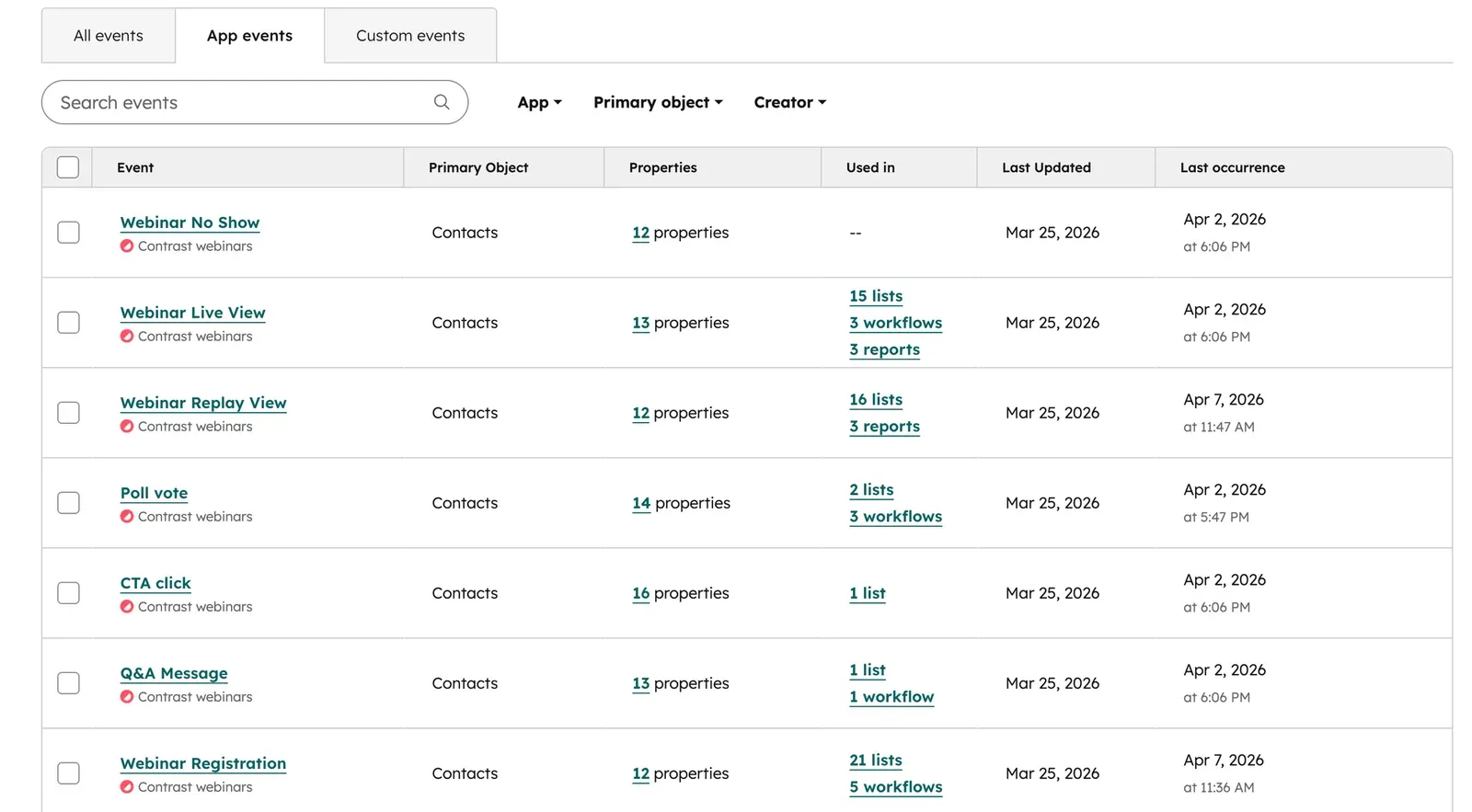
Step 3: At the top of the Event Management page, you'll see tabs. Click App Events.
Step 4: You'll now see a list of all integrations you have installed that send App Events. This could include tools like Zoom, LinkedIn, Vidyard, DocuSign, Hotjar, Aircall, Arrows, PandaDoc, and many others. Nearly 500 apps in the HubSpot marketplace support App Events.
Step 5: Click into any individual App Event to see:
- A timeline graph showing spikes and dips in activity
- The metadata/properties that event carries
- A list of contacts who have triggered that event
Step 6: From within any App Event's detail view, click the Actions dropdown and select Use In to jump directly into the tool where you want to use it — whether that's workflows, lists, the report builder, or customer journey analytics. HubSpot will pre-populate your starting point automatically.
Now let's move onto actual use cases that show you how to use these App Events in practice.
Use Case 1: Segment Contacts by Webinar Attendance
One of the most foundational uses of webinar App Events is building accurate attendance segments. Rather than manually exporting and uploading CSVs, you can create live, self-updating lists in HubSpot based on exactly who registered, who attended live, and who watched the replay.
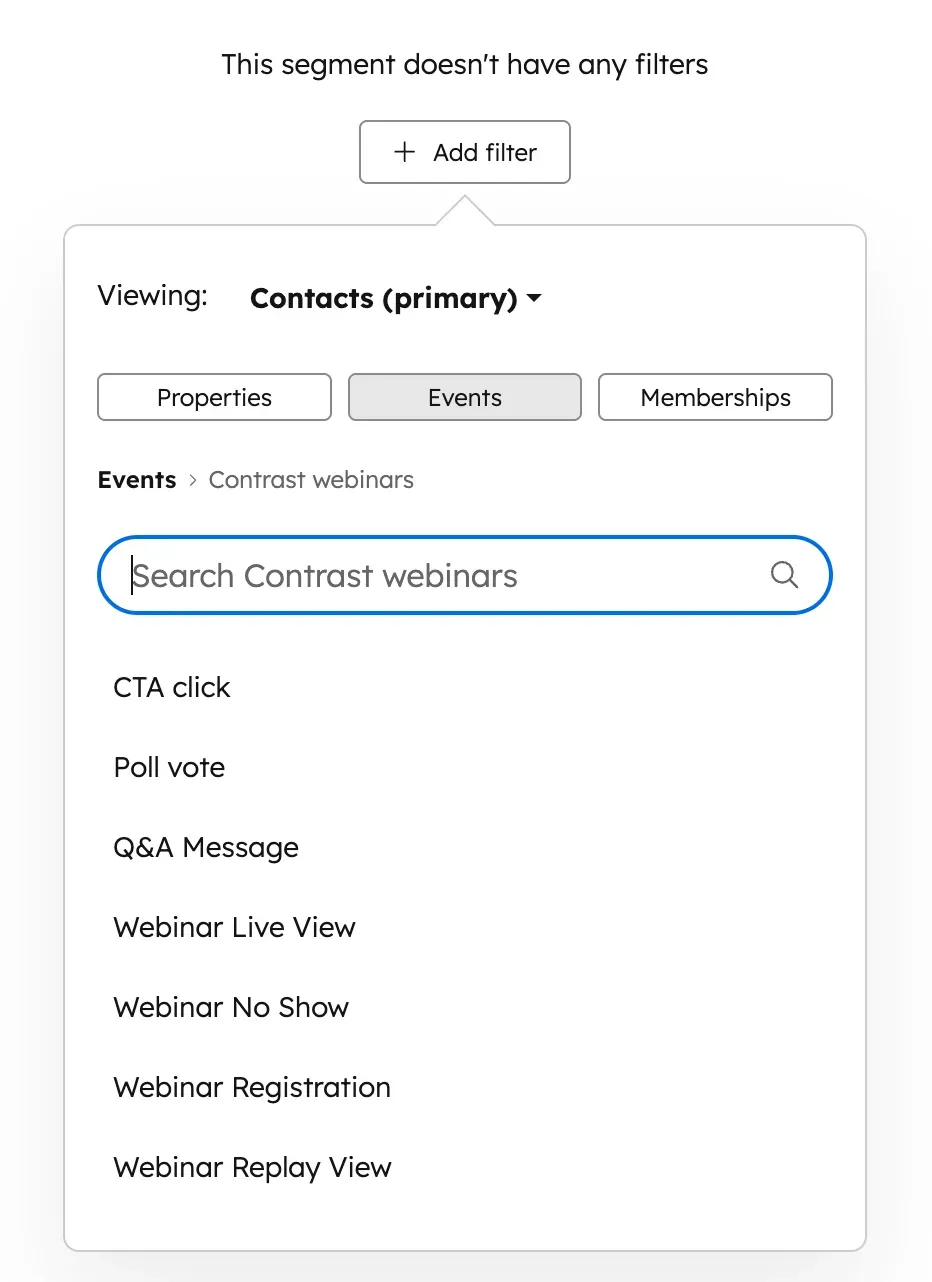
When to use this: Building follow-up audiences, suppression lists, or re-engagement campaigns based on webinar participation.
How to Build a Webinar Attendance List (Step-by-Step)
Step 1: In HubSpot, navigate to Contacts > Lists (or CRM > Lists).
Step 2: Click Create List in the top right. Choose Contact-based and select Active List (so it updates automatically as new attendees come in).
Step 3: Give your list a clear name, such as "Webinar: [Event Name] — Live Attendees."
Step 4: In the filter panel, click Add filter. Instead of going to contact properties, look for the Events section in the filter type selector and click it.
Step 5: Scroll to the bottom of the event options to find your integration's events (e.g., "Contrast Webinars"). Select the relevant event — for example, Webinar Live Attendance.
Step 6: Add a filter for Webinar Name and enter the name of your specific event. This scopes the list to one webinar rather than capturing attendance across all your events.
Step 7: Click Save. Your list will now populate with everyone who attended that webinar live and will continue updating in real time.
Repeat this process with Webinar Registration and Webinar Replay View events to build your full set of attendance segments. You can then use list membership as enrollment criteria in workflows or as filters in reports.
Bonus: Some integrations (like Contrast) now offer a "Did Not Attend" App Event, which fires for registrants who didn't show up. This eliminates the need to build a "registered but not on the attended list" logic — you can trigger re-engagement flows or sales follow-up directly from this single event.
Poll-Based Personalization with AI Follow-Up
This is where App Events get genuinely powerful. If you're running polls during webinars, that data doesn't have to die in a CSV export. You can use poll responses to branch your follow-up workflows and generate AI-personalized outreach for each answer.
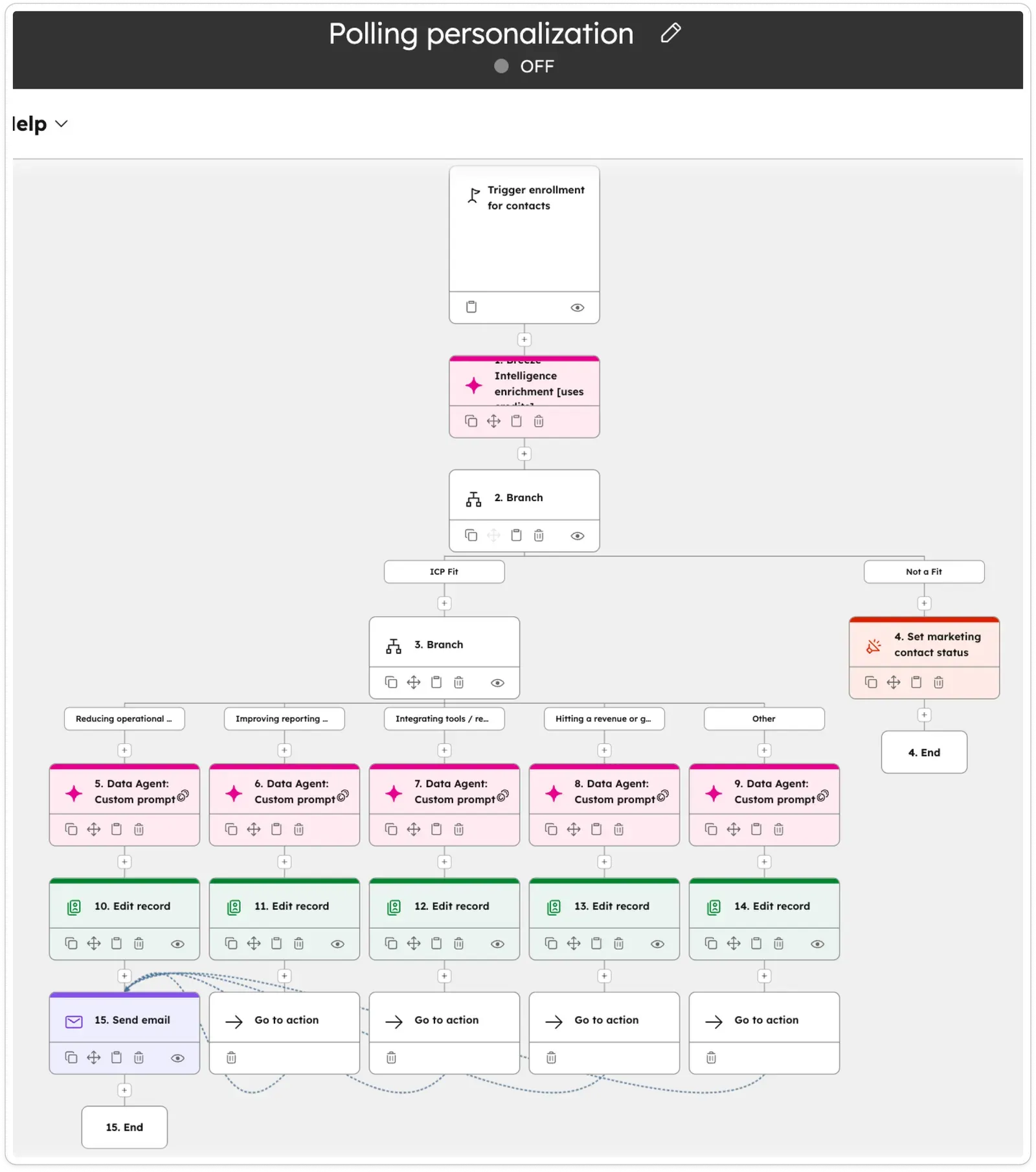
When to use this: Post-webinar nurture sequences where you want each contact to receive messaging relevant to their specific stated priority or challenge.
How to Build a Poll Personalization Workflow (Step-by-Step)
Step 1: In HubSpot, navigate to Automation > Workflows and click Create workflow. Select Contact-based.
Step 2: Set the enrollment trigger. Click Set enrollment triggers and navigate to the Events filter section. Select your integration (e.g., Contrast Webinars) and choose Poll Vote as the event type.
Step 3: Add a filter to scope to a specific poll question, such as "What's your number one priority for the next 90 days?" Save the trigger.
Step 4: Add an If/Then Branch action. Set up branches for each possible poll answer — for example: "Reduce operational costs," "Grow revenue," "Improve team efficiency."
Step 5: (Optional but recommended) Before the branch, add a Contact property check for ICP fit — for example, filtering on company annual revenue or industry. This prevents wasting follow-up resources on contacts who aren't a good fit. For non-ICP contacts, set their marketing contact status to non-marketing and exit the workflow.
Step 6: Inside each answer branch, add a Data Agent action (this uses Breeze credits, which are included with all paid HubSpot plans). Write a prompt like: "Based on what you know about our company and products, write one sentence completing this: 'We would love to show you how [Company Name] can help you [poll answer goal].' Research the contact's company website for context."
Step 7: Add a Set Contact Property action to save the AI-generated sentence to a property called something like "Email Personalization Token."
Step 8: Add a Send Email action. In your email template, include a personalization token that pulls from the "Email Personalization Token" property you just populated. The result: every contact receives an email with a sentence specifically written about how your product addresses their stated goal, informed by their company's actual website.
Use Case 3: Real-Time Q&A Routing to Sales
Every Q&A question asked during a webinar is a buying signal. App Events capture these questions on the contact record, which means you can trigger automated sales follow-up the moment someone asks about pricing, implementation, or your product roadmap.
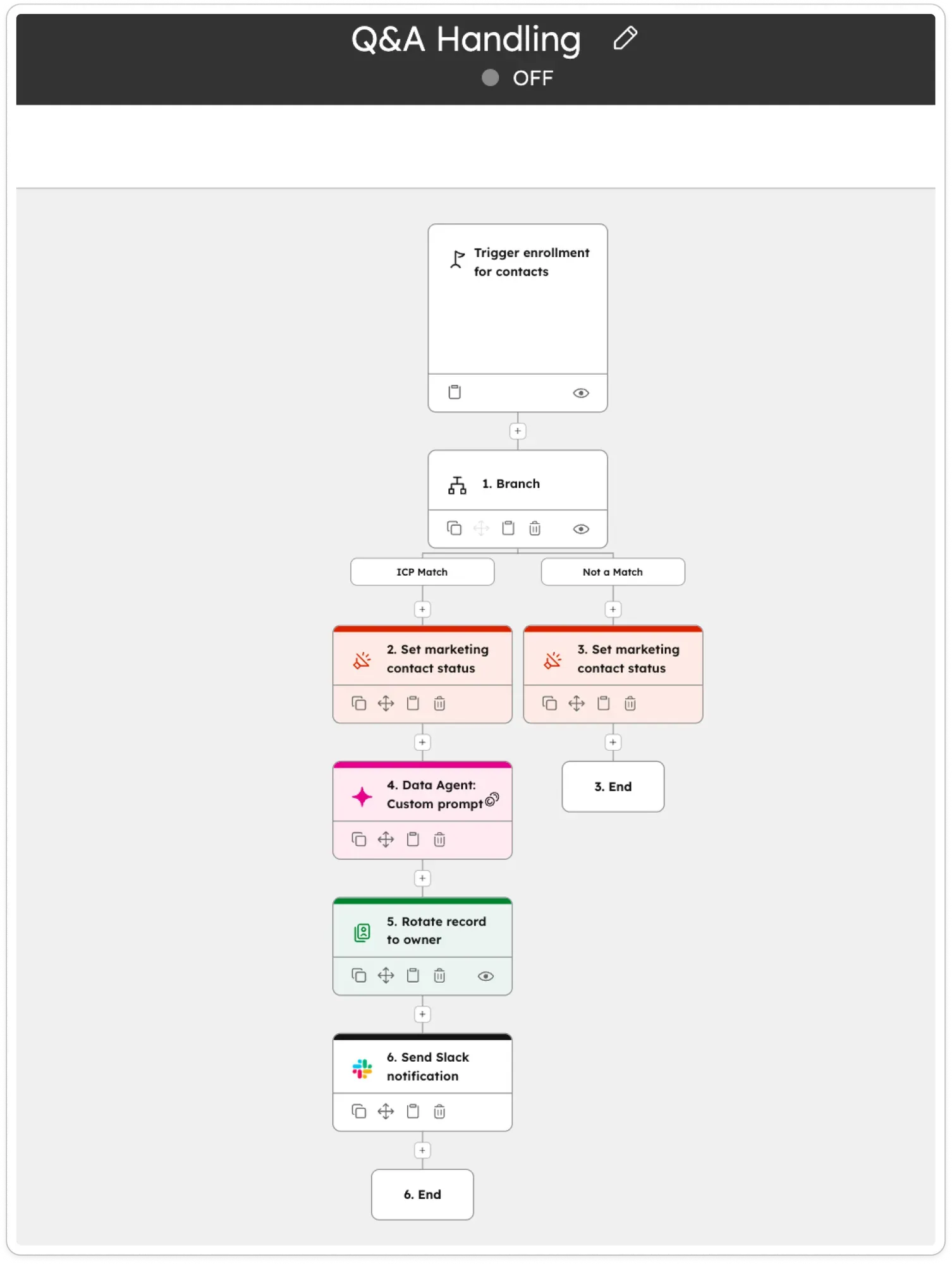
When to use this: Routing high-intent webinar questions to the right sales rep for rapid, personalized follow-up.
How to Build a Q&A Routing Workflow (Step-by-Step)
Step 1: In HubSpot, navigate to Automation > Workflows and create a new contact-based workflow.
Step 2: Set the enrollment trigger to the Q&A Message App Event from your webinar integration. Filter to your specific webinar name if needed.
Step 3: Add an If/Then Branch for ICP fit (same logic as Use Case 2 — no point routing unqualified contacts to your sales team).
Step 4: For ICP-qualified contacts, add a Rotate Contact Owner action to assign the contact to a sales rep from your desired rotation group.
Step 5: Add a Data Agent action with a prompt like: "Based on what you know about our company and products, provide a two-sentence informed answer to the following question asked during our webinar: [Q&A Message property]. Note: this is a suggested answer only — the sales rep should fact-check and edit before sending."
Step 6: Add a Send Internal Email Notification or Send Slack Notification action to alert the assigned sales rep. Include in the message:
- The contact's name and email
- The webinar name
- The question they asked (pulled from the event's Q&A Message property)
- The AI-generated suggested answer
Step 7: Turn on the workflow. Sales reps now receive instant, contextual follow-up prompts the moment a qualified lead raises their hand during a webinar.
Important note on AI accuracy: For poll responses (where answers are predetermined), AI personalization can be tightly controlled. For Q&A, where someone could ask literally anything, always include a "please fact-check this before sending" instruction in your prompt and notification. The human-in-the-loop step is essential here.
Use Case 4: Live Slack Notifications from Poll Votes
This is a live demo use case, and one of the most immediately satisfying to build. As attendees answer a poll during your webinar, their names and answers arrive in a Slack channel in real time. The practical application goes beyond wow factor: it enables sales teams to act on intent signals while the webinar is still live. You of course don't have to use this in realtime. A few days after the webinar is over works as well.
When to use this: Real-time sales team awareness during webinars; instant routing of high-interest signals like demo requests or pricing inquiries.
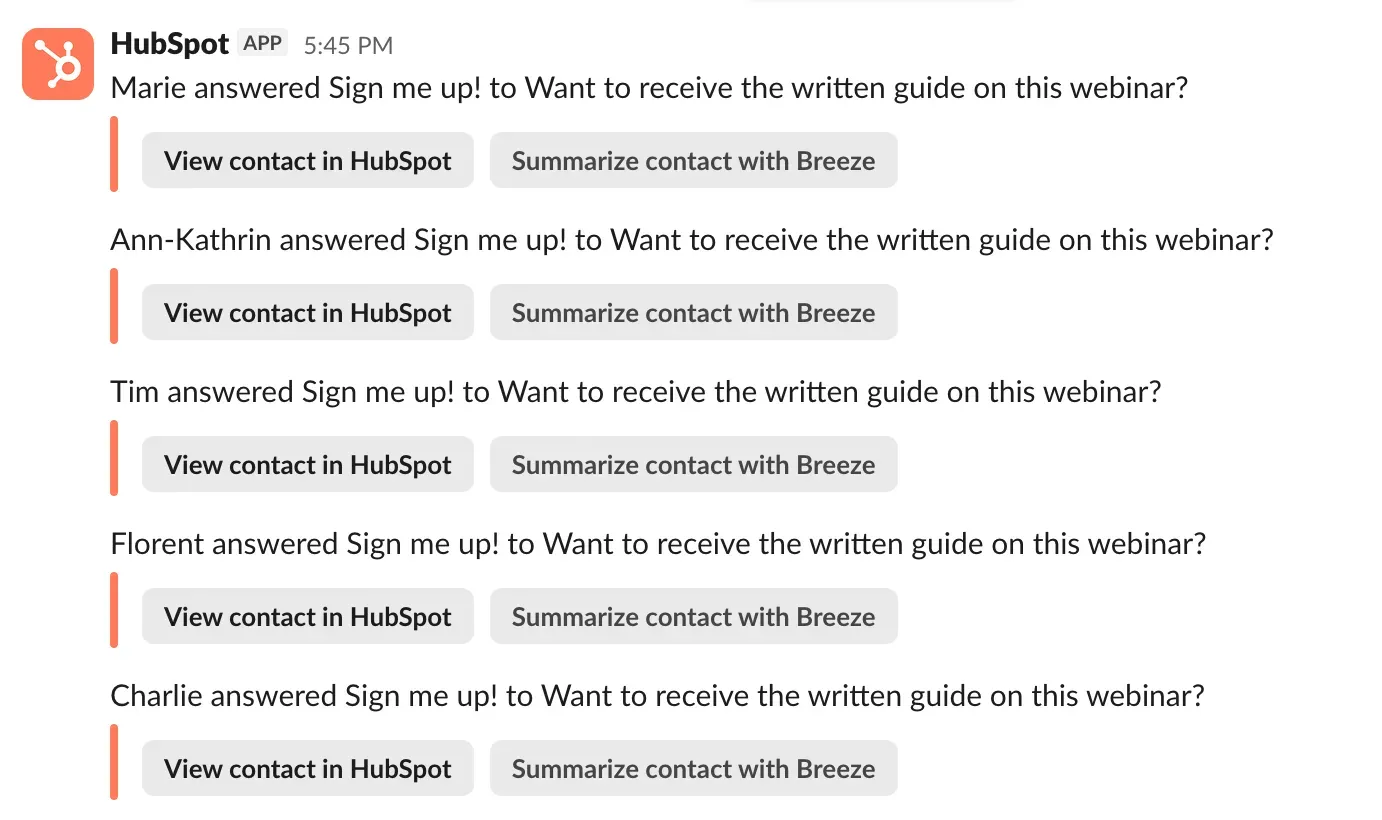
How to Build a Real-Time Poll-to-Slack Workflow (Step-by-Step)
Step 1: In HubSpot, navigate to Automation > Workflows and create a new contact-based workflow.
Step 2: Set the enrollment trigger. Go to Events > App Events and select the Poll Vote event from your webinar integration.
Step 3: (Optional) Add an If/Then Branch if you only want to notify sales for specific answers — for example, only when someone answers "Yes, I want a demo" rather than for every poll response.
Step 4: Add a Send Slack Notification action. Connect to your workspace if you haven't already.
Step 5: Choose the target channel (e.g., #webinar-follow-up or #sales-leads).
Step 6: Build the message body. This is where App Event properties shine — you can pull data directly from the trigger event. Your message might read:
[Contact's Email] answered "[Poll Answer]" to the question "[Poll Question]"
To do this, use HubSpot's personalization tokens inside the message. When setting up the Slack action, click into the message field and select Trigger from the token menu, then choose the relevant App Event properties (Poll Answer, Poll Question).
Step 7: Save and turn on the workflow. Test it by answering your own poll.
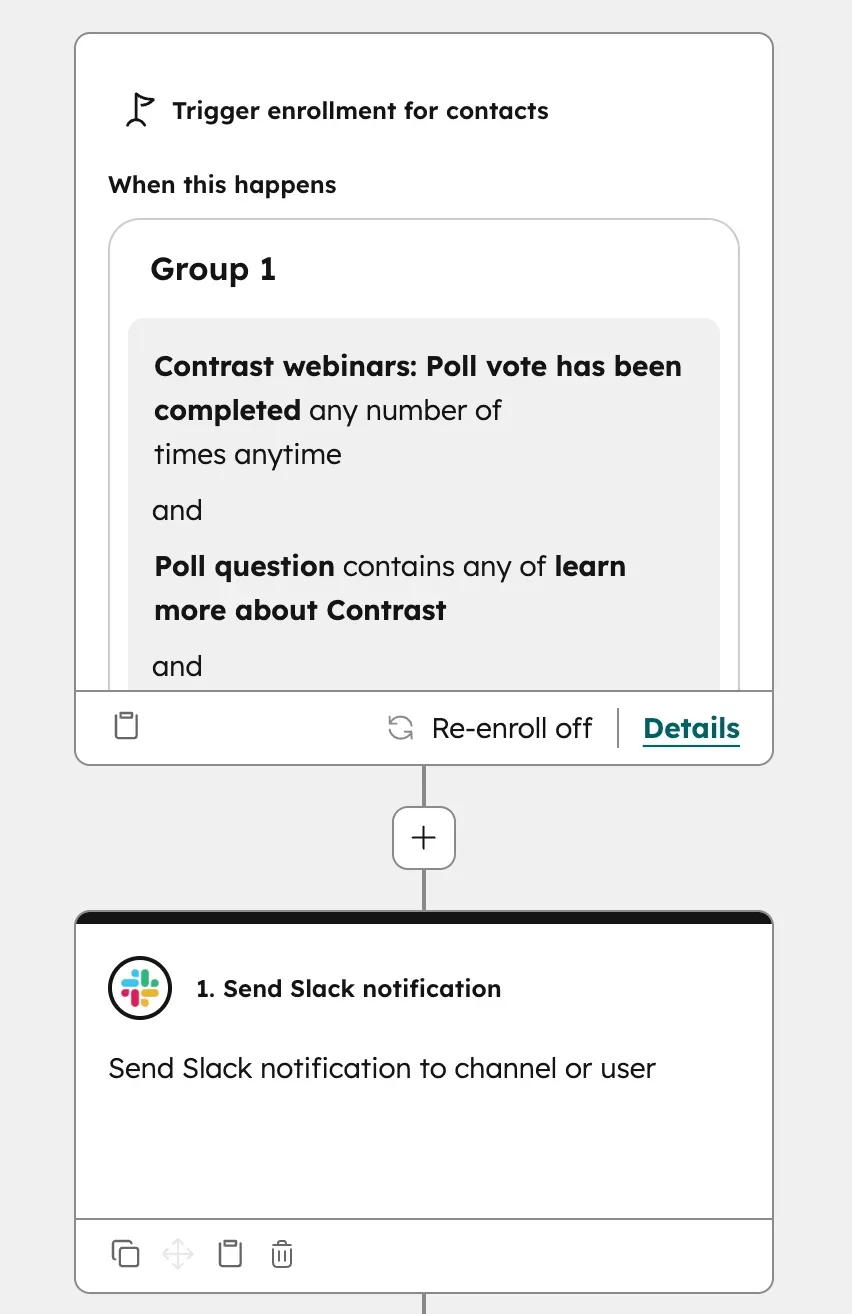
The result: every time an attendee votes, a Slack message appears within seconds. For time-sensitive signals — like a CTA click on a pricing page or a "Yes, book me a demo" poll response — this enables sales teams to reach out while the webinar is still live, capturing leads at peak intent.
Use Case 5: Webinar Attribution with Customer Journey Analytics
One of the most powerful new capabilities enabled by App Events is building Sankey-style customer journey charts that show the influence of your webinars on pipeline and revenue — without any manual data wrangling.

Here's a real example: a previous Contrast webinar with 858 registrants was analyzed using this exact method. The results showed 328 live attendees, 199 replay viewers, 45 influenced deals, and nearly €4,000 in monthly recurring revenue — all visible in a single chart.
When to use this: Justifying webinar program investment to leadership; understanding which webinars drive the most pipeline; measuring the time from attendance to deal creation.
How to Build a Webinar Attribution Chart (Step-by-Step)
Step 1: In HubSpot, navigate to Reports > Analytics Tools > Customer Journey Analytics (note: this feature is available on certain HubSpot tiers).
Step 2: Click Create Report.
Step 3: Add your first journey step: select the Webinar Registration App Event from your integration. This becomes the entry point of your funnel.
Step 4: Add your second step: Webinar Live Attendance App Event. HubSpot will calculate what percentage of registrants moved to this step and how long it took.
Step 5: Add a third step: Webinar Replay View App Event, to capture those who didn't attend live but watched the recording.
Step 6: Add a fourth step: Deal Created. Set an association filter so it only counts deals associated with the contacts in your journey.
Step 7: (Optional) Add a fifth step: Deal Closed Won, to see revenue attribution end-to-end.
Step 8: Save and name the report. Add it to your webinar performance dashboard.
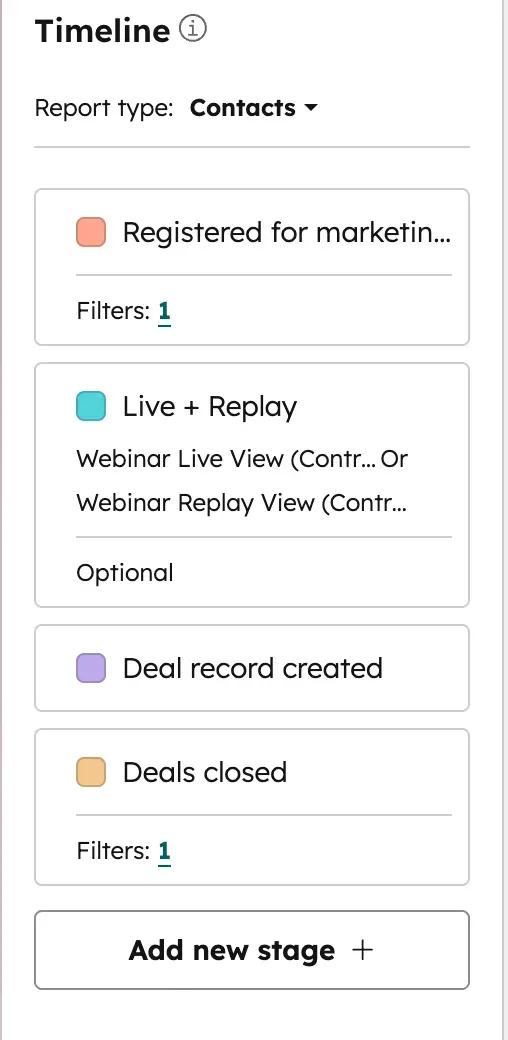
The resulting chart shows conversion rates between each stage, median time between steps, and the number of contacts at each stage. You can hover over any segment to drill into the specific contacts it represents.
Important note on attribution: This report shows influence, not causation. A contact attending your webinar and then becoming a customer doesn't mean the webinar caused the purchase — it means the webinar was part of their journey alongside many other touchpoints. Present this data as "influenced pipeline" rather than "generated pipeline" for accuracy.
Use case 7. App Events in Lead Scoring (Step-by-Step)
App Events can be used to award points in both Lead Scores and Health Scores in HubSpot, making your scoring models far more sophisticated than contact properties alone allow.
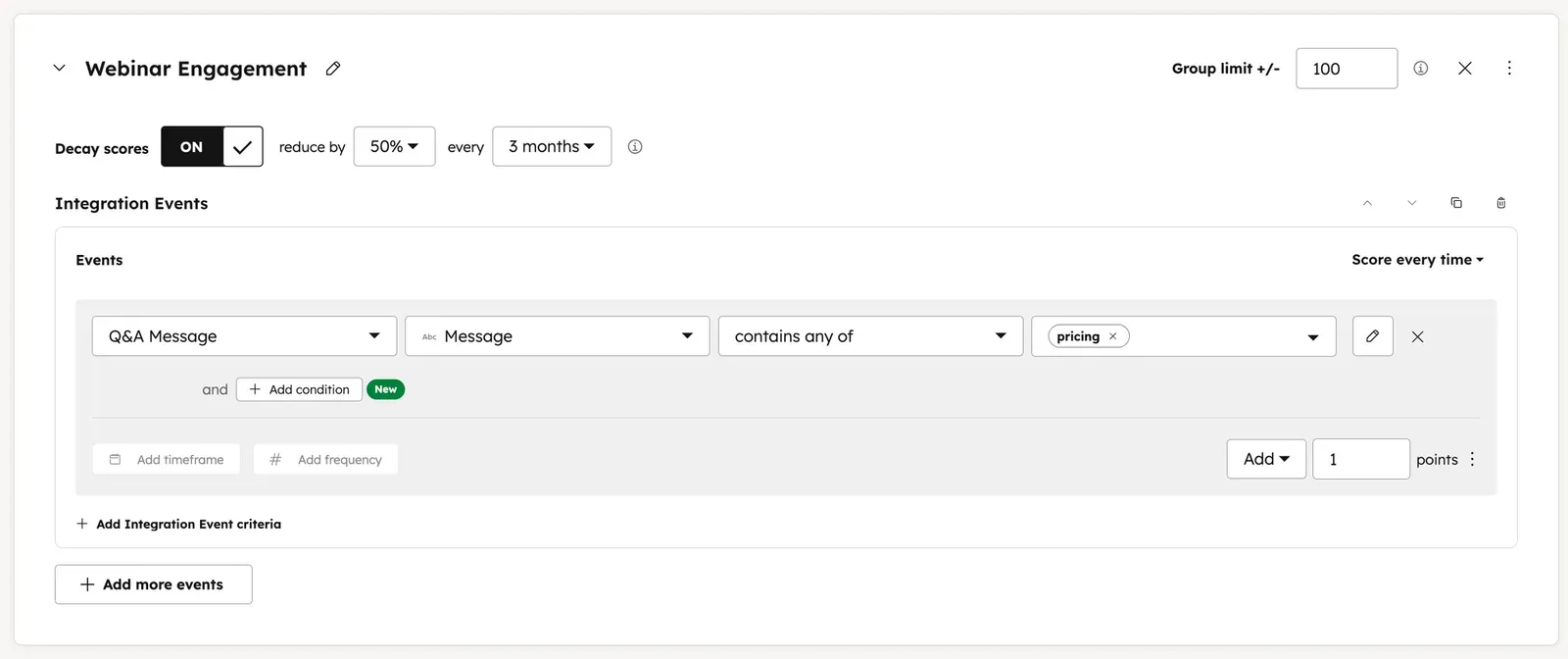
Step 1: Navigate to your lead score. Go to CRM > Contacts, then click Actions > Manage Lead Scoring, or find your scoring model under the relevant property.
Step 2: Click Add Criteria to add a new scoring rule.
Step 3: In the filter type selector, look for Integration Events (sometimes labeled under Events or App Events depending on your account view).
Step 4: Select the specific event you want to score. For a webinar use case, this might be Webinar Live Attendance, CTA Click, or Poll Vote.
Step 5: Add event property filters to make scoring more granular. For example: award more points if someone attended and the event property "Poll Answer" contains the word "pricing," or if a Q&A question contains "demo" or "how much."
Step 6: Set the point value and whether this is a positive or negative score contribution.
Step 7: Save the criteria. Contacts will now receive points automatically whenever the qualifying App Event fires.
This allows your lead score to reflect real behavioral signals from integrations — not just form fills and email opens.
App Events: The best method to automate the bulk of your webinars
App Events represent one of the most underutilized capabilities in HubSpot's data model — and recent updates have dramatically expanded what you can do with them.
Here's what to remember:
App Events are the "verbs" of your CRM. They capture what contacts are actually doing across your integrated tools — not just who they are.
They're already in your account. If you have integrations installed, you almost certainly have App Events flowing in right now. Go to Data Management > Event Management > App Events to see them.
The new management experience is your starting point. From any App Event's detail page, you can jump directly into building a list, workflow, report, or journey — with the event pre-populated as your starting filter.
Rich metadata is what enables personalization. The best use cases (poll-based follow-up, Q&A routing, real-time Slack alerts) all depend on App Events carrying meaningful properties — not just "this happened," but "this happened, to this person, in this context, with these details."
Attribution requires nuance. App Event-based attribution shows influence, not causation. Present it that way, and it becomes a genuinely compelling story for leadership.
If you run webinars and use HubSpot, the combination of a well-integrated webinar platform and HubSpot App Events can turn what was previously a manual, CSV-driven process into a fully automated, real-time revenue engine.
Contrast is the number 1 rated webinar platform for companies who use HubSpot. Find out more on the HubSpot Marketplace – or book a demo and learn how Contrast can help.
Frequently Asked Questions
The questions below come from the same webinar we hosted with Ryan and Maggie. You can rewatch it here. Still have a question you'd like to ask? Maxim from Contrast is happy to help out. Simply add him on LinkedIn.
Do all App Events have properties attached?
Yes, but the richness of those properties depends on how thoroughly the integration partner built their App Event schema. High-quality integrations will include metadata like event name, attendance percentage, poll question, poll answer, CTA URL, and more. Lower-quality integrations may include only basic identifiers.
How is this different from storing data in a custom contact property
Properties are great for "what's true right now" — most recent webinar, current lead score, latest contract status. But properties overwrite with each update, so you lose the history. App Events preserve every occurrence as a separate, queryable record with its own timestamp and metadata.
I can see 149 apps in my integrations. How do I know which ones send App Events?
Go to Data Management > Event Management > App Events tab. Only integrations that actually send App Events will appear here. This is the fastest way to see what's already flowing in.
What webinar platform make best use of App Events?
Contrast has the deepest implementation of HubSpot App Events on the HubSpot Marketplace today. It's also rated best, with a 4.9 stars and 100+ reviews. Click to learn more about the Contrast x HubSpot webinar integration.
How are deals correlated with App Events for attribution?
Through HubSpot's association model. A contact triggers an App Event; that contact is associated with a deal; the deal therefore has an indirect link to the event. In the Custom Report Builder and Customer Journey Analytics, you can filter or join on these associations to build attribution views.
Can App Events be used for in-person event tracking?
The Marketing Events object is HubSpot's purpose-built tool for managing events people attend (in-person or virtual). App Events are better suited for tracking activity within a third-party platform. Many implementations use a combination of both, along with custom events and custom objects. The right answer depends on your specific data model — it's worth consulting with a HubSpot partner if you're building a complex events infrastructure.
Can I use App Events for lead scoring?
Yes — see the step-by-step tutorial above. App Events are available under "Integration Events" in the scoring criteria builder.